The family
manual.
The connected clock that keeps you close to your loved one. Here is how it works — on the tablet side, and on the phone side.
English edition · Switzerland
allydisplay.com · hello@allydisplay.com
The connected clock that keeps you close to your loved one. Here is how it works — on the tablet side, and on the phone side.
The tablet next to you is a clock.
It shows you the time, the day, the date. Sometimes it speaks to you, in a gentle voice.
There is nothing for you to learn. There is nothing for you to open. There is no button for you to find.
You cannot break anything.
You cannot get it wrong.
Everything that happens on the tablet, your family can see too.
Enjoy it.
Ally Display and Ally Companion are two apps that work together. Ally Display sits on the tablet at your loved one's home: it looks like a clock. Ally Companion is on your phone: it lets you write, send, call and schedule.
For an older person who dislikes phones, who has no wish to learn a new app, and who deserves better than a digital photo frame.
And for you, who think of them ten times a day.
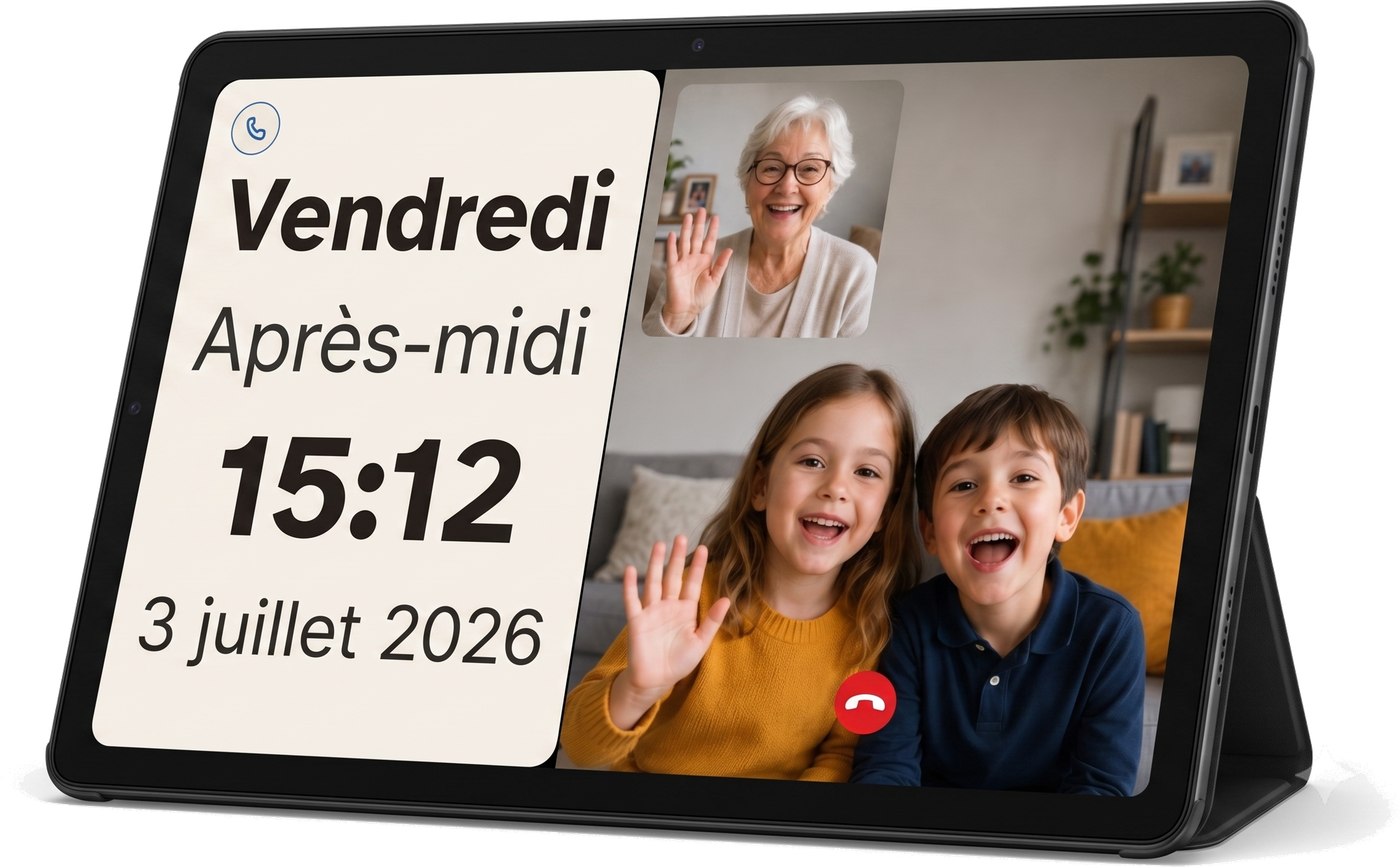
On your loved one's side, nothing changes. The screen stays a clock. When a message arrives, it appears nice and large, with a voice reading it out. When the moment passes, the screen goes back to being a clock. No menu. No swiping. No app to open.
The idea fits in one picture: the tablet is passive at your loved one's home. The app on your phone is active on your side. Everything travels over the internet, encrypted, hosted in Switzerland.
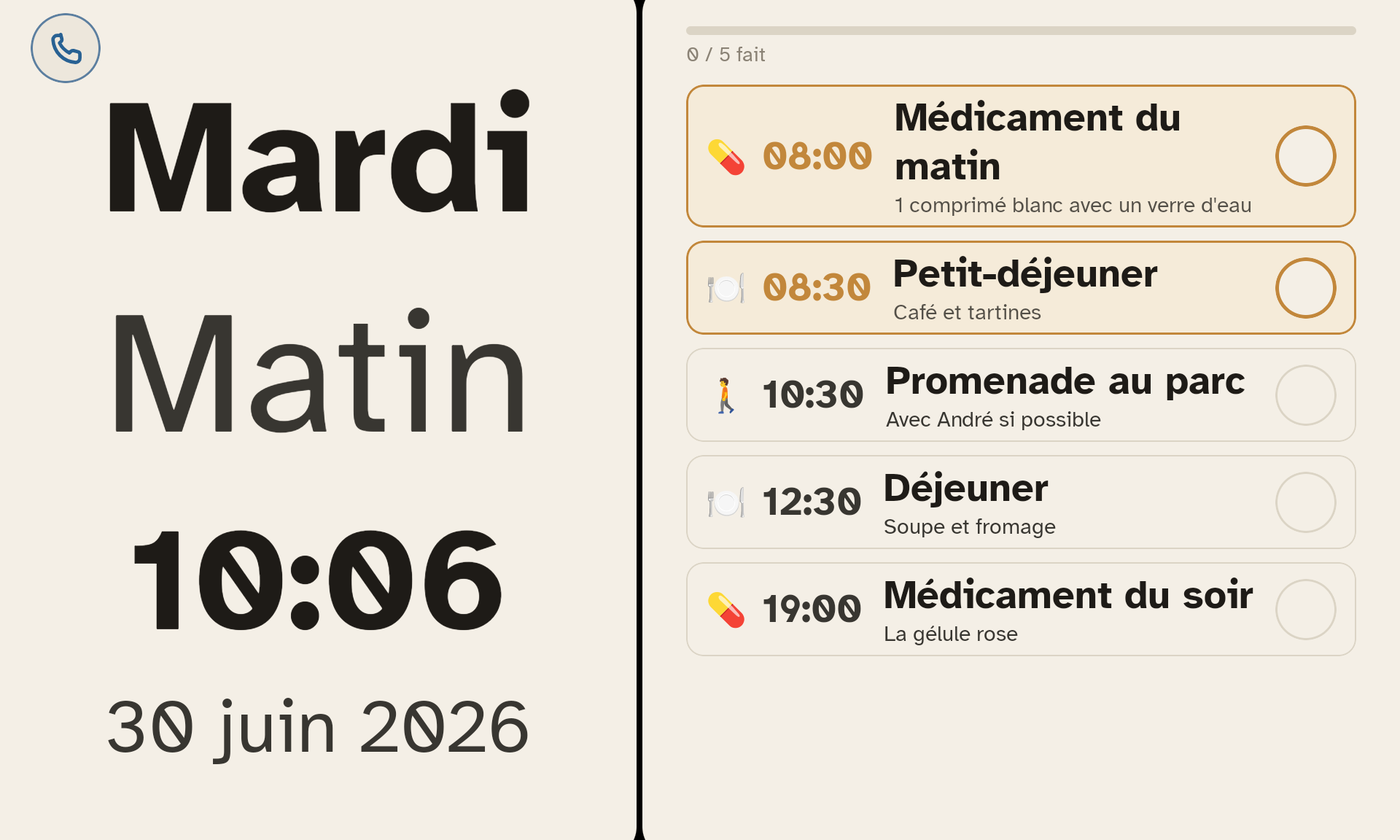
The app running on your loved one's tablet. A clock: the time, the day's reminders, and messages as they arrive. Nobody needs to "operate" it.
The app on your phone. You write, you send, you schedule, you call. You can see how the day went.
Scan this code with your phone's camera: it takes you to the App Store or Google Play depending on your device. With no camera to hand, type allydisplay.com/telecharger into your browser.
To be done once only, ideally at your loved one's home during a visit. You will need the home Wi-Fi or a SIM card, and your phone within reach.
Plug the tablet in and switch it on.
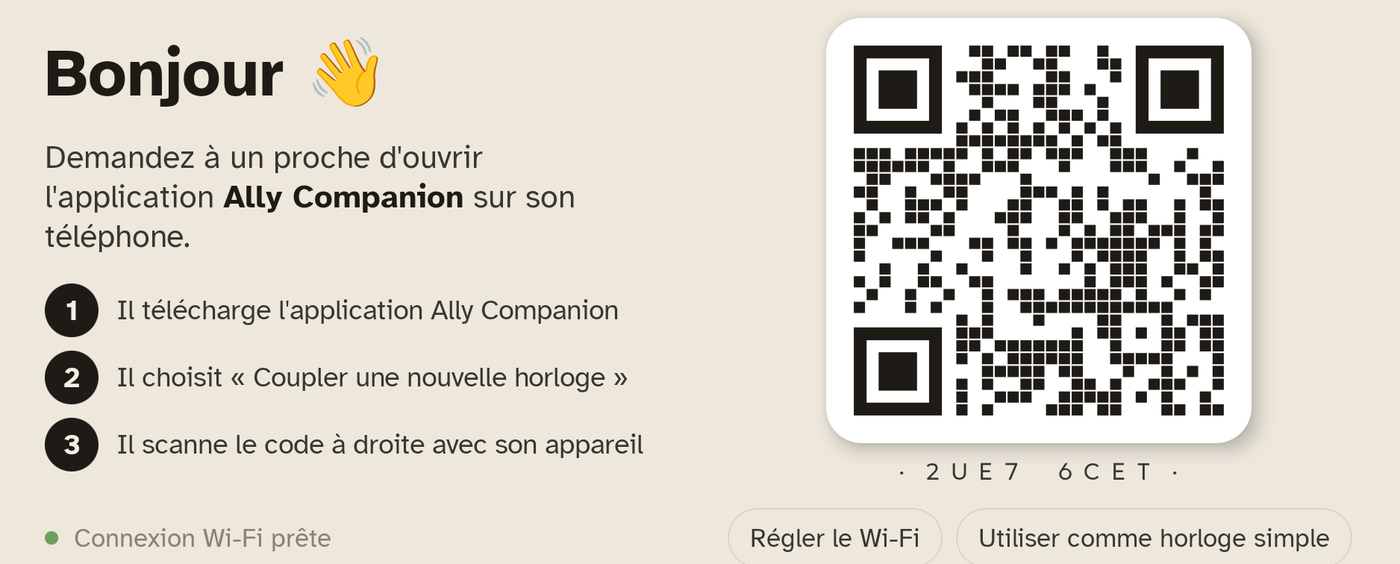
It starts up straight onto the pairing screen. A large "Hello 👋" appears, along with a QR code.
Connect the tablet to the home Wi-Fi.
If the tablet has a SIM card (optional), it can also work without Wi-Fi.
On your phone, open the Ally Companion app (available on the App Store or Google Play).
Create your account with your email address. Choose a password you will remember.
Tap "Pair a tablet" in the app, and scan the QR code shown on the tablet.
A few seconds later, the clock appears on the tablet. That's it.
Give the household a name ("Mum", "Dad", "Granny") and the tablet too ("Living room", "Kitchen").
That name appears in your app so you can tell tablets apart if you have several.
Wi-Fi is the only real prerequisite. If the household changes router or password, the tablet can no longer reconnect and it will need to be reconnected to the new network. See page 18.
In normal use, the tablet permanently shows the home screen: the time, the day, the date, and depending on your settings, the day's routines, or a photo slideshow.
At the hours you set (default: 10 pm–7 am), the tablet switches to night mode: a very dark screen, almost off. The time stays readable but wakes nobody. Reminders and messages are muted, except an incoming call.
If your loved one likes hearing the time out loud, you can turn on the spoken announcement: on the hour, every quarter of an hour or every 5 minutes. Off by default.
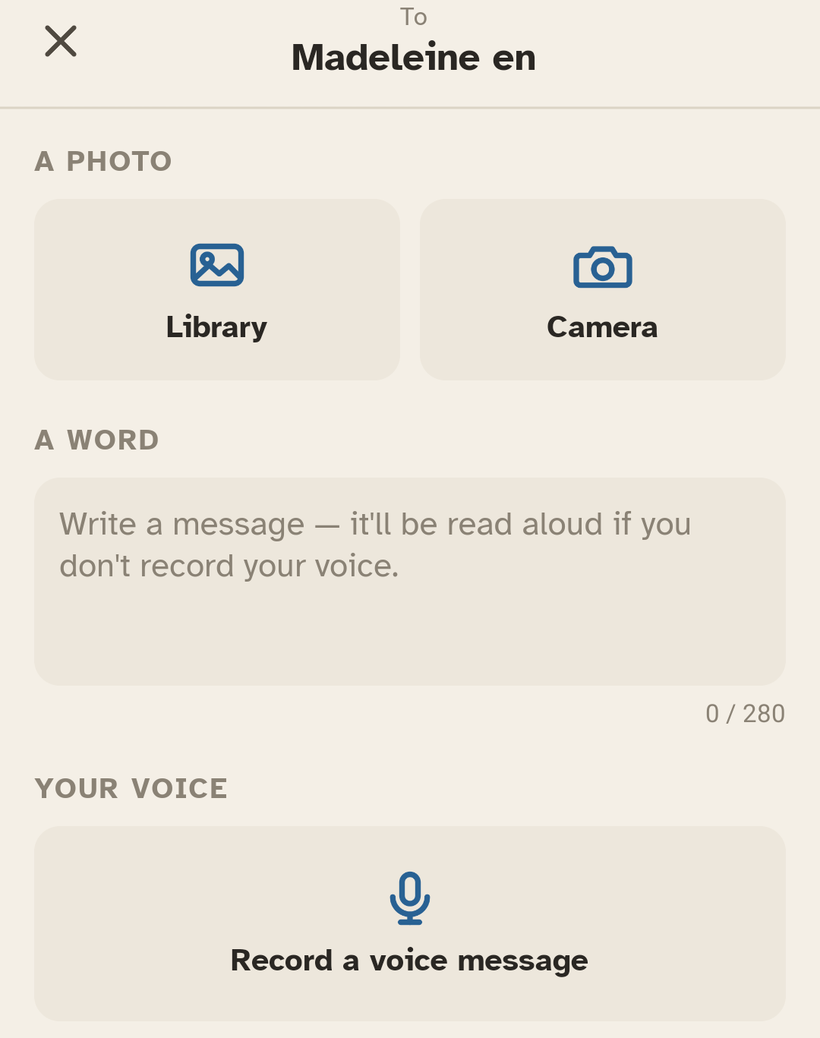
On your app's home screen, at the bottom, there are three buttons: ✉️ Message, 📞 Audio, 📹 Video. The first one is for sending a message.
On the tablet, the screen shows your photo nice and large, your voice plays on its own, and — after 90 seconds — the screen goes back to the clock.
If you don't record your voice, the app uses a gentle synthetic voice that reads out the text you typed. Very handy for a few words sent from the bus.
In your app's Activity tab, you see:
Calling on Ally Display is deliberately simple: the tablet rings loudly, shows your face, and your loved one touches the screen once to answer. No swipe to the right, no green button to aim at.
The 📞 button starts a call without video. Useful if the connection is weak, or if video isn't practical. On the tablet, your loved one sees your photo and hears your voice.
By default, the tablet does not pick up on its own — your loved one stays in charge of who comes into their living room. If you wish, turn on auto-answer for one specific tablet (the living room, but not the bedroom):
If your loved one doesn't notice the ringing and auto-answer is allowed on that tablet, a "Make the tablet answer" button appears on your call screen. Tap it: a 8-second countdown starts, which your loved one can cancel by tapping "Decline". At the end, the tablet picks up on its own. With several tablets, only the one you chose picks up; the others stop ringing.
Auto-answer is useful for rooms where the tablet is placed to stay in touch (living room, kitchen). It is not advisable in a bedroom. You decide tablet by tablet ; it is off by default everywhere.
Calls don't only go one way. On the tablet's home screen, top left, a small 📞 Call button lets your loved one make a call without dialling a number, without opening an app, without hunting for a contact.
Plenty of moments aren't urgent. Your mother just wants to talk to her granddaughter on a Thursday afternoon: "Everyone" would be excessive. Conversely, some afternoons you simply want to be sure at least one person will answer — and that's where the wide mode earns its place.
Ally Display does not call the emergency services (144, ambulance, police). For an accidental fall, a stroke, a collapse with no waking: a medical alert bracelet (Spitex, Red Cross) remains essential. Ally Display connects you with your family, it does not replace a medical device.
A reminder appears on the tablet at the appointed time. The Reminders tab groups two kinds: recurring ones, which come back every week (medicine, meals, a walk), and upcoming ones, attached to a specific date (an appointment, a birthday). You create them from your phone.
This is a paid-plan feature.
Three or four reminders a day is about right. Beyond that, your loved one ends up ignoring them — and missed-reminder detection loses its meaning.
Link a calendar you already keep (Google, iCloud, Outlook…) and its appointments appear quietly on the tablet, alongside the routines. At the appointed time, the appointment is shown and read out loud. This is a paid-plan feature.
Google — from a computer (not the mobile app): calendar.google.com → hover over your calendar → ⋮ → Settings and sharing → “Integrate calendar” → copy the “Secret address in iCal format” (ends with basic.ics).
iCloud — in the Calendar app (or on iCloud.com), share the calendar as a “Public Calendar” then copy the link. It starts with webcal://: that’s normal, paste it as-is.
Outlook / Microsoft 365 — on outlook.com: Settings → Calendar → Shared calendars, publish the calendar, then copy the ICS link.
Appointments appear with a 🗓️ marker, in their place in the day. When an appointment has a start and an end time, both are shown one above the other, clearly readable. They are informational: no "Done" button, never flagged as "missed". At the appointed time, the title is read out loud, then the screen returns to the clock.
⚠️ Paste the link exactly as given — don’t add anything in front. An iCloud link that starts with webcal:// is pasted as-is; the app understands it. For Google, take the “Secret address in iCal format” (ends with basic.ics), not the “public” link — and don’t share it. Finally, calendars only refresh every few hours: an appointment you just added may take a moment to appear.
Your app's home screen shows, at the top, a large "All is well" block with, just to its right, a small live preview of what your loved one is seeing right now.
Every routine so far has been confirmed. The tablet is online.
One or more routines weren't confirmed on time. Tap the block to see which.
Two routines missed in a row, or several hours with no sign of activity. You get an audible notification.
The tablet has been without Wi-Fi for more than 10 minutes. The block reads "seen 23 min ago".
The preview shows exactly what the tablet is displaying right now: the clock, or a message in progress, or the ongoing call. You also see the battery percentage and the "Live" status.
To see the history hour by hour: who sent what, who saw what, which routine was confirmed when. Filterable by type — Communications, Tasks, Devices, Household.
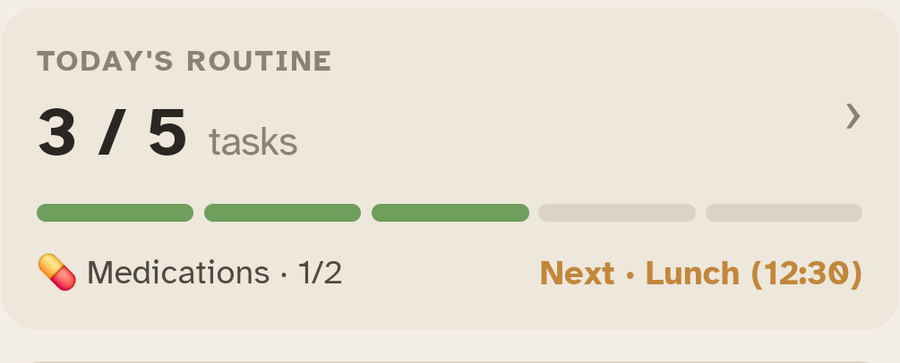
Just below, the Today's routine block sums the day up at a glance — 9 / 11 done. Tap it for the detail: done, coming up, running late.
Every photo you (and the other caregivers) send is gathered into a shared album, reachable from the Gallery tab.
You can turn on a photo slideshow next to the clock: the photos go by in silence, a new one every 30 seconds. Much appreciated when your loved one stays a long time in the same room.
To change how fast they change or the display order, go into the settings.
On the Discovery plan, the album is limited to 5 photos. On the Caregiver and Family plans, the album is unlimited.
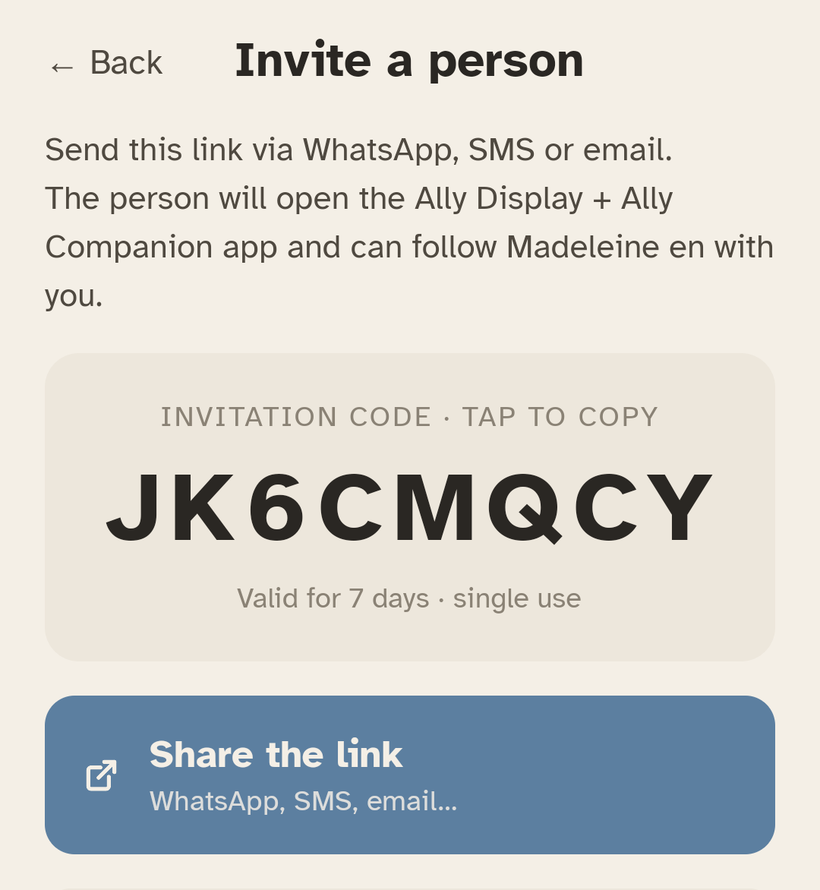
You can be several people keeping watch. Invite a brother, a sister, a child, the family doctor — each one gets their own alerts and can send their own messages.
Off on holiday and want to hand the admin role to your sister? Settings → Household → Hand over the admin role. You become a standard member; she takes over. Reversible.
Discovery: 1 caregiver. Caregiver: 2 caregivers. Family: unlimited caregivers. See page 17.
Ally Companion notifies you rarely and rightly. The idea isn't to add a layer of stress — it's to catch your attention when, and only when, it matters.
In the Activity tab, the dropdown at the top lets you show only what interests you: All · Communications · Tasks · Devices · Household.
The vast majority of settings are handled from your phone, in the Settings tab. The tablet itself has almost nothing to adjust — you simply tell it "here is what we expect of you" and it obeys.
The language — French, German, Italian, English and 9 more — is set once for the household, in Household settings, and not tablet by tablet. Every tablet in the home follows, including the time spoken out loud. You can even choose it before pairing the first one.
To open the local settings panel (Wi-Fi, connection, status): press and hold anywhere on the screen for 10 seconds. The panel opens. No PIN to remember, no precise corner to aim at — the length of the touch acts as a barrier against your loved one opening it by accident.
At pairing time, take 5 minutes to go through the main settings: volumes, brightness, night mode, language. It's easier done with your loved one present than over the phone three days later.
Three plans, plus an option for organisations (care homes, home-care services, Spitex). You can change plan at any time from the app, in Settings → Subscription. Payment happens directly in the app.
Free (for life)
9.- / month or 90.- / year
15.- / month or 150.- / year
On request
If the home has no Wi-Fi, or if you'd rather not depend on Wi-Fi, you can add a 4G SIM card dedicated to the tablet: 10.- / month or 110.- / year.
The vast majority of problems are solved by restarting the tablet. But here are the concrete cases, by symptom.
Check the Activity tab — if it says "message sent" but not "message seen", your loved one may not have been in front of the tablet. The message stays on screen between 30 s and 15 minutes, depending on what you chose when sending — after that, it no longer shows, but it stays in the photo album if there's an image.
In your Ally Companion app: Settings → Tablet → Announcement volume. If the volume is too low, turn the "announcements" volume up (separate from the ringtone volume).
That's a problem on our side. Wait 1 to 2 minutes and try again. If it lasts more than 5 minutes, write to us at hello@allydisplay.com.
As a last resort, you can reset the pairing from the tablet (local settings → Reset pairing) then pair again. No data is lost on the family side.
Ally Display is designed and hosted in Switzerland. All your data — photos, voice, messages, history — is encrypted in transit and stored on servers in Switzerland.
Should your loved one pass away, do contact us: we archive the household and stop the subscription, at no charge. The photos and messages stay available to you for 12 months so you can export them at your own pace.
We're a small team in French-speaking Switzerland. You'll talk to a person, not a robot. We reply within the day on average.
Ally Display is published by Senior Shop Sàrl, Rue de la Boverie 40, 1530 Payerne, Switzerland. Designed with families, caregivers and care professionals — so that distance stops being a wall.
You're holding this manual because you're looking after someone you love. That's precious. If Ally Display saves you even one reassured phone call a day — that's our goal. All the best.